Getting Started
Launching Cronboard
After installing, start the application with:
The app reads your user crontab on startup. If you have no cron jobs yet, the table will be empty; you can add your first job in a few steps (see Your First Cron Job).
Interface Overview
When Cronboard opens you will see a single window with a header, tab bar, main table, and footer. The layout is fixed so you always know where to look.
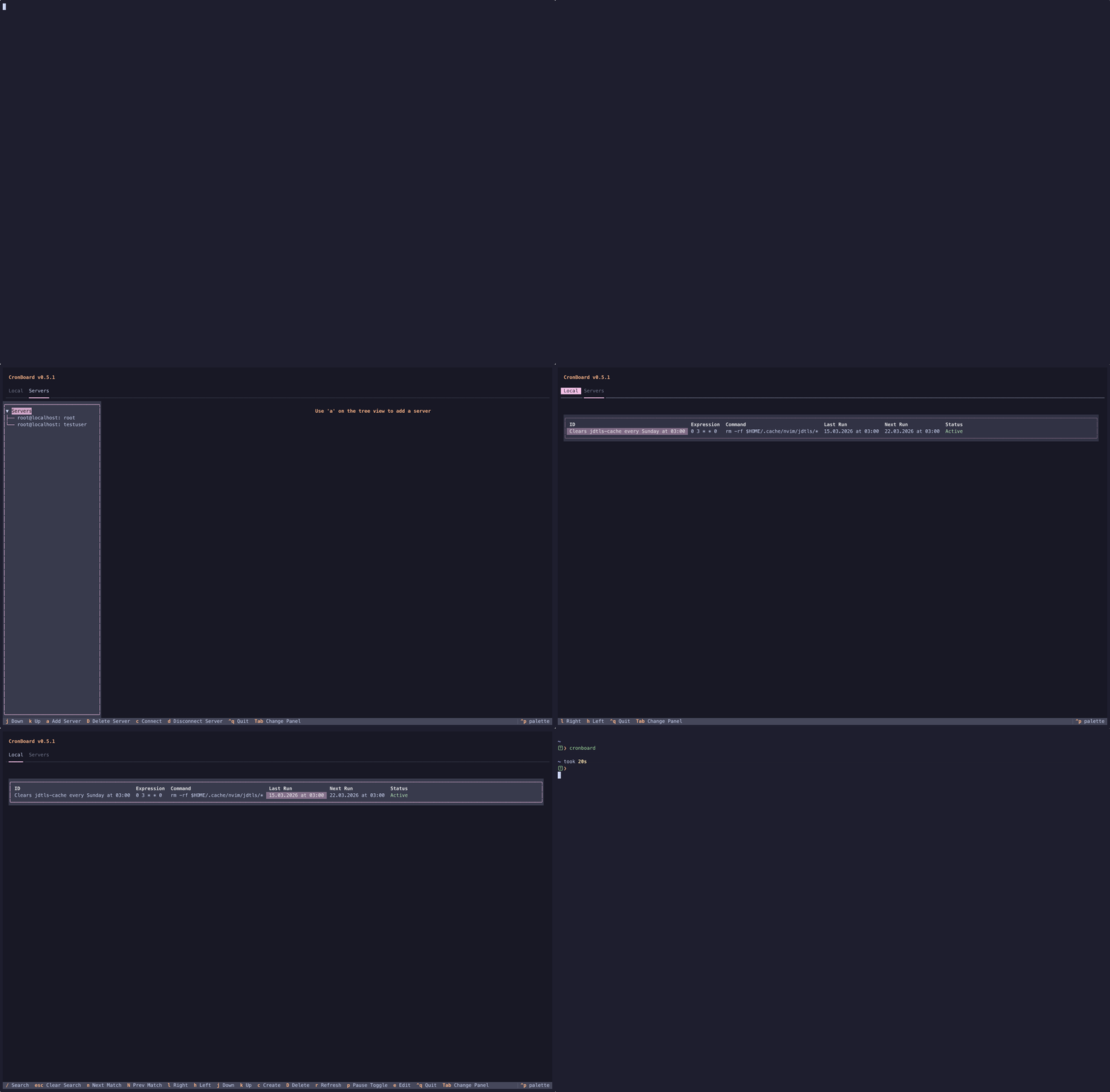
- Header — shows the app name and current version. Useful to confirm you’re running the version you expect.
- Tab bar — switch between Local (your local cron jobs) and Servers (remote SSH servers). Only one tab is active at a time; the main table shows the jobs for the active tab.
- Main table — lists all cron jobs with the following columns:
| Column | Description |
|---|---|
| ID | The comment/identifier attached to the job |
| Expression | The raw cron expression (e.g. 0 * * * *) |
| Command | The shell command that runs |
| Last Run | When the job last ran |
| Next Run | When the job will run next |
| Status | Active, Paused, or Inactive |
- Footer — displays all available keyboard bindings for the current context. The bindings change depending on whether you’re in the table, a form, or the Servers panel, so it’s worth glancing at the footer when you switch context.
Your First Cron Job
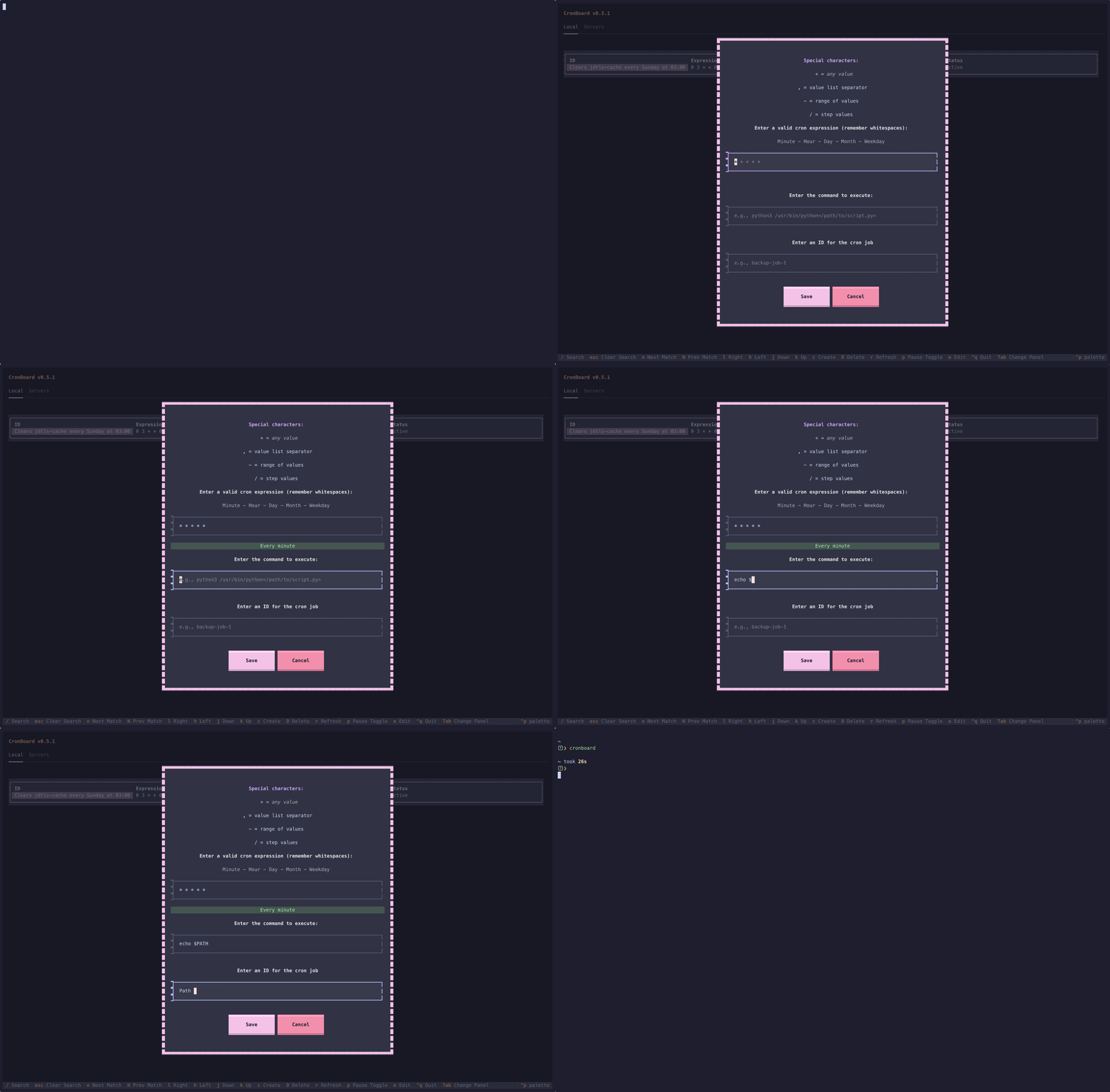
Creating a job is the main way to get started. The flow is the same for local and remote (after connecting to a server).
- Press
cto open the Create form. The form has three fields: Expression, Command, and ID. - Enter a valid cron expression in the Expression field (e.g.
0 * * * *for every hour).
As you type, a human-readable description appears below the field in real time (e.g. "Every hour"). This helps you confirm the schedule before saving. - Enter the Command to execute. Use
Tabto autocomplete file paths so you don’t have to type full paths by hand. - Give the job a unique ID (stored as a crontab comment). The ID helps you recognize the job in the table and in raw
crontab -loutput. - Press Save.
The table refreshes automatically and your new job appears immediately. No need to restart the app.
Switching Between Local and Remote
Use the Tab key to switch focus between panels, or click the Local / Servers tabs at the top.
- Local — manages your current user's crontab. Changes are written directly to your system crontab.
- Servers — lists saved SSH servers. Add servers once; they’re stored in config so you can reconnect anytime. See Remote Servers for setup and connecting.
Quitting
Press q or Ctrl+Q to exit Cronboard. Your crontab (and any remote crontabs you edited) are already saved; there is no separate “save before quit” step.